Showing posts with label Tutorials. Show all posts

Sunday, September 30, 2012

Most Beautiful ROM for LG Optimus One - Free Download


MIUI.us is the most beautiful ICS based rom i had ever seen. It has loads of features but less bugs. As O1 is an ARMv6 devices it requires new drivers from Qualcomm to get perfect ICS.

What's Working :
  • Boot
  • Touchscreen
  • MIUI Apps and Launcher
  • Sd-Card
  • Wifi
  • Sms and Call -2g/3g
  • Bluetooth
  • Accelerometer
  • Audio
  • headphone
  • Superuser root updated and works
  • Installing Apps
  • GPS
  • Virtual Keys
  • Led
  • Brightness
  • Sensors
  • Charger
  • * *Camera
  • * *USB Connection
  • Browser
  • Other's 
What's not working :

  • HD video playback
  • Panaroma

You must root your phone to install this ROM.  To know how to root your phone click here.


Instructions :

  • Download the MIUI.us_LG_P500.zip from the release link that follows
  • Backup your /data contents: contacts, apps, sms, etc. or backup via recovery
  • Move the MIUI.us_LG_P500.zip to the root folder of your sdcard.
  • Enter CWM and:
  • - Select 'backup and restore -> Backup'
  • - Select 'wipe data/factory reset' (MUST DO)
  • - Flash the zip. To do this, Select 'install zip from sdcard -> choose zip from sdcard' and select the MIUI.us_LG_P500.zip
  • Reboot (first boot will take ~2 mins)

Saturday, September 29, 2012

Android Ice Cream Sandwich tips and tricks


1. Add quick controls to the browser

One of the options buried beneath the Labs section of Android 4.0's web browser is the Quick Controls option. This adds a pop-out menu to the browser, which pulls in a little semi-circular collection of shortcuts to the main browser features, removing the URL bar and giving you more screen to play with. Also, holding down the Back button is the Android standard way of bringing up the bookmarks and history tool, too. But that's been around for years.
Quick controls

2. Long-press to uninstall

Long-pressing on an app within the app drawer lets you drag it to a Home screen, but it also pops up a couple of menus along the top of the screen. App Info gives you the boring technical stuff about how much memory it's taking up, or you can fling it off the other way to uninstall it.

3. Flying Android screensaver

One odd undocumented little secret within Android 4.0 is this strange little collection of flying Androids, which you can... look at. Look at for as long as you like. To activate it, head into the phone's About screen and hammer away at the Android Version tab and it'll all happen.
Flying Androids

4. Save your eyes with inverted rendering

Inverted rendering is a posh way of saying it makes the pages black and turns the text white, so it looks like you're reading the internet from 1997. It also supposedly saves battery, plus is easier on the eyes if you're reading in the dark. It's under the browser's settings tab, within the accessibility area - and there's a contrast slider, too.
Inverted rendering

5. Set a custom rejection text message

When your Twitter action is rudely interrupted by someone actually telephoning you, there's a polite way to give the caller the boot. Android 4.0 lets users ping a rejection text message to callers - and you're able to customise this too. Just answer a call and ping the lock screen notification up to access to custom rejection messaging area.

6. Stop app icons automatically appearing

One of the many new ICS features is the way Google lets apps automatically add shortcuts to themselves on your Home screen when they've finished installing. It's useful, but if you're a control freak and wish to remain 100% in charge of your Home layout, head to the Google Play app's settings tab and untick the Auto-add Shortcuts toggle.
Home Screen

7. There's a Settings shortcut in the Notifications pane

That little settings icon in the ICS notifications area isn't just art to fill the space. It's a shortcut to your phone or tablet's settings area. So use that instead of giving it a Home screen icon slot all to itself.

8. Manually close apps

Google's lovely new recent apps multitasking menu also lets you close apps quickly, should you suspect one's gone rogue. A Long-press within the Recent Apps listing lets you visit the app's info page, from where you can easily force close it.
Multitasking

9. Remove the lock screen

It's possible to entirely bin your Android 4.0 lock screen, making the phone instantly turn itself on when you press the power button. It's a security nightmare, but if your phone lives entirely on your desk and you demand instant access without any unlocking, head to Security > Screen lock and select none. Then be very careful.

10. Folders in the dock

Android's new official love of folder formation makes it dead easy to combine app shortcuts and make folders, simply by dragging one icon on top of another. You can make these groups of apps even easier to access by dragging a folder onto the ICS floating dock, meaning you can squeeze stacks more content on to each creaking Home screen.
Dock

11. Take photos while recording video

The Android 4.0 camera app that arrived with the Galaxy Nexus has one cool little extra feature - the ability to fire off still photos while recording video clips. Simply tapping the screen takes a shot at full resolution, which is saved to the phone's gallery while the video's still happily recording away.
Video

12. Bin animations and transitions

Hidden within the Developer Options section of the Ice Cream Sandwich software are quite a few nerdy ways to adapt your phone. Most won't be of any use to those who are just using their phone as a phone, but if you want it to feel faster, or at least look a little different, the scrolling, zooming effects on windows and menus can be edited in many ways.

13. Take a grab of your phone

Screen grabbing of your phone's display is finally in Android. On the Galaxy Nexus, it's activated through holding the power button and volume down switch. On HTC's new models it's done by holding the power button and pressing Home. Other phones had different techniques for doing this before Ice Cream Sandwich, but it's good to see this now becoming part of the standard Android feature set in Android 4.0.
Screenshot

14. Long-press dotted words

When typing on the Android 4.0 keyboard, you may see some suggested words appear with the "..." icon beneath. Doing a long-press on this one will pop up a much bigger window of suggested words, letting you bail out on some of that tedious typing a little quicker.

15. Add additional faces

The ICS face unlock feature, as found in the Galaxy Nexus, lets you unlock it by scanning your face with the front camera. Which is great, but what if you haven't shaved for a month? The software can actually store multiple images of your face, so you can do left parting, right parting, shaved, unshaved - or even add a trusted a friend to the visually verified user list.
Face unlock

16. Experiment with GPU settings

Another hidden little gem found within the Development options tab is the hardware acceleration 'Force On' toggle. This makes ICS attempt to boost the performance of any apps that don't already use the feature. It may also break them in the process, though, so it's something of a trial and error fiddling exercise to do on a very rainy day.

17. Type like an adult

Make a stand for grammatical standards in this day and age by long-pressing on the stock Android 4.0 keyboard's full stop button. This brings up such doomed punctuation as commas and speech marks, plus even a semicolon for the extra brave mobile typist.
Adult typing

18. Nick wallpapers off the internet

Found a lovely photograph of some stars, a pretty computer generated planet or even the mighty Professor Brian Cox himself? Long-pressing on any image in the web browsers lets you instantly set it as your wallpaper, without the hassle of saving it, finding it, and setting it the long way.

19. Limit background process

If you fancy an even more serious bit of fiddling, the same ICS developer area contains the option to "limit background process" demands by the OS. You can use this to stop your phone or tablet storing so many apps in memory. Whether this has any effect of the actual battery life of us users is up for debate, but again, it's something to play with and see if it suits your phone use patterns.

20. Quickly access Notifications

Here's a simple yet huge change Google's made in Android 4.0 - the Notifications pane can be accessed from the lock screen. Press power, touch the Notifications area, then scroll down to read your latest messages. Obviously it's a bit of a security risk and lets anyone access your messages, so best be careful.

Sunday, September 16, 2012

Stock CM9 Dark Holo Themed MMS - Free Download


This is a stock MMS application for CM9. The only change is that it is dark holo themed instead of light.
This will not work on TouchWiz without modification or running it alongside of your stock mms application.


 Instructions:
It's a system app. Use a root explorer to move the application into your system/app directory, or, even easier, push it to /system/app with adb:

Code:
adb push Mms.apk /system/app
That's all there is to it.

 Downloads :

MMSb.apk
Mms.apk


Saturday, September 15, 2012

A beginners guide to Hacking UNIX


In the following file, all references made to the name Unix, may also be
substituted to the Xenix operating system.

  Brief history:  Back in the early sixties, during the development of third
generation computers at MIT, a group of programmers studying the potential of
computers, discovered their ability of performing two or more tasks
simultaneously.  Bell Labs, taking notice of this discovery, provided funds for
their developmental scientists to investigate into this new frontier.  After
about 2 years of developmental research, they produced an operating system they
called "Unix".

  Sixties to Current:  During this time Bell Systems installed the Unix system
to provide their computer operators with the ability to multitask so that they
could become more productive, and efficient.  One of the systems they put on the
Unix system was called "Elmos".  Through Elmos many tasks (i.e.  billing,and
installation records) could be done by many people using the same mainframe.

  Note:  Cosmos is accessed through the Elmos system.

  Current:  Today, with the development of micro computers, such multitasking
can be achieved by a scaled down version of Unix (but just as powerful).
Microsoft,seeing this development, opted to develop their own Unix like system
for the IBM line of PC/XT's.  Their result they called Xenix (pronounced
zee-nicks).  Both Unix and Xenix can be easily installed on IBM PC's and offer
the same functions (just 2 different vendors).

  Note:  Due to the many different versions of Unix (Berkley Unix, Bell System
III, and System V the most popular) many commands following may/may not work.  I
have written them in System V routines.  Unix/Xenix operating systems will be
considered identical systems below.

  How to tell if/if not you are on a Unix system:  Unix systems are quite common
systems across the country.  Their security appears as such:

Login;     (or login;)
password:

  When hacking on a Unix system it is best to use lowercase because the Unix
system commands are all done in lower- case.

  Login; is a 1-8 character field.  It is usually the name (i.e.  joe or fred)
of the user, or initials (i.e.  j.jones or f.wilson).  Hints for login names can
be found trashing the location of the dial-up (use your CN/A to find where the
computer is).

  Password:  is a 1-8 character password assigned by the sysop or chosen by the
user.

      Common default logins
   --------------------------

   login;       Password:

   root         root,system,etc..
   sys          sys,system
   daemon       daemon
   uucp         uucp
   tty          tty
   test         test
   unix         unix
   bin          bin
   adm          adm
   who          who
   learn        learn
   uuhost       uuhost
   nuucp        nuucp

  If you guess a login name and you are not asked for a password, and have
accessed to the system, then you have what is known as a non-gifted account.  If
you guess a correct login and pass- word, then you have a user account.  And,
if you guess the root password, then you have a "super-user" account.  All Unix
systems have the following installed to their system:  root, sys, bin, daemon,
uucp, adm

  Once you are in the system, you will get a prompt.  Common prompts are:


$

%

#


  But can be just about anything the sysop or user wants it to be.

  Things to do when you are in:  Some of the commands that you may want to try
follow below:

  who is on (shows who is currently logged on the system.)
  write name (name is the person you wish to chat with)
  To exit chat mode try ctrl-D.
  EOT=End of Transfer.
  ls -a (list all files in current directory.)
  du -a (checks amount of memory your files use;disk usage)
  cd\name (name is the name of the sub-directory you choose)
  cd\ (brings your home directory to current use)
  cat name (name is a filename either a program or documentation your username
has written)

  Most Unix programs are written in the C language or Pascal since Unix is a
programmers' environment.

  One of the first things done on the system is print up or capture (in a
buffer) the file containing all user names and accounts.  This can be done by
doing the following command:


cat /etc/passwd


  If you are successful you will a list of all accounts on the system.  It
should look like this:

root:hvnsdcf:0:0:root dir:/:
joe:majdnfd:1:1:Joe Cool:/bin:/bin/joe
hal::1:2:Hal Smith:/bin:/bin/hal

  The "root" line tells the following info :

login name=root
hvnsdcf   = encrypted password
0         = user group number
0         = user number
root dir  = name of user
/         = root directory

  In the Joe login, the last part "/bin/joe " tells us which directory is his
home directory (joe) is.

  In the "hal" example the login name is followed by 2 colons, that means that
there is no password needed to get in using his name.

  Conclusion:  I hope that this file will help other novice Unix hackers obtain
access to the Unix/Xenix systems that they may find.  There is still wide growth
in the future of Unix, so I hope users will not abuse any systems (Unix or any
others) that they may happen across on their journey across the electronic
highways of America.  There is much more to be learned about the Unix system
that I have not covered.  They may be found by buying a book on the Unix System
(how I learned) or in the future I may write a part II to this........

Signed By : RK World

For More Cool Stuff  Visit  : Geek's Area


Change your Android Mobile status bar using this simple Application


Anotify,No more Boring Status bar,Fancy Status bar for your phone.

Anotify: No more boring Status Bar!

Give your phone fancy status bar.

Anotify is An Android application to give your device status bar a fancy look by adding your favorite icons in status bar.

Icons Included:
*Android
*Windows
*Batman
*Superman
*Spiderman
*US flag
*UK flag
*Indian flag
*Mario
*ferrari
*Ironman
and many more.....
Updated version with more icons will be available soon.


Download link
Anotify

How to Enable 3D on the HTC EVO 3D and Evo V whenever you want


For those of us who own an HTC EVO 3D, we tend to be hit, from time to time, with questions about our investments. Questions like, “why did Sprint take over a year to release something that was ready to go way before?” or “Will we be getting JB like the other devices that are getting it?” However, a question that more often than not plagues my mind as an owner of this device is, “Where else can I use the 3D display?” Being able to watch a few movies and play certain games in 3D is cool, but there should certainly be other things that can be done to take advantage of the panel technology—like a 3D interface, 3D wallpaper, and so on.

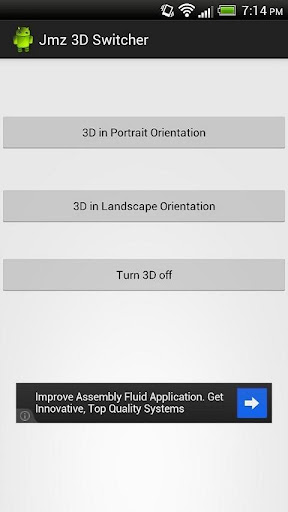
If you are thinking about these possible uses and more, here is a nice little app that will allow you to use 3D at all times during normal operation. Essentially, the app changes a value in the 3D panel controller, which turns it on and leaves it in that state. Due to rotation obviously being an issue with this (remember how the camera always complains whenever you try to take pictures while holding the phone vertically?), the app allows you to turn the 3D feature on either for landscape or portrait mode. The only one thing that can be somewhat cumbersome is that this app will render your light sensor useless and will boost and lock your brightness at 100%. This effect will go away as soon as you turn off the 3D functionality through the app.
So, if the idea of having actual 3D wallpaper makes you salivate, make sure that you try out this simple yet fulfilling app and leave some feedback for the dev.
 This app just echo’s a number in 3D_mode to enable complete device 3D. Either Landscape or Portrait.


Download link
JMZ Evo 3D - 3D Switcher

Sunday, August 12, 2012

Droid Scan Pro PDF - mobile app that turns your phone or tablet into a portable document scanner - apk - Free Download


Droid Scan is a mobile app that turns your phone or tablet into a portable document scanner. With Droid Scan you can transform images captured with your camera into professional multi-page PDF documents in just a few clicks.

Unique, state of the art features, including:
- Batch processing, including turbo import, turbo capture, and batch convert, so that multi-page documents can be created with just a few taps.
- Integrates with OCR by Google Docs, Evernote, and Google Goggles.
- Integrates with Box OneCloud
- Document shape recognition, for perfectly shaped, professional-looking scans.
Turn your mobile phone into a document scanner that goes where you go. Convert any snapshot into a highly readable JPEG or PDF by fixing geometry, contrast, and color.

** Please try free version first (Droid Scan Lite).
Record business cards, white boards, full page documents, and receipts. On-phone conversion: complete confidentiality, no subscription fees.
Multiple resolutions available from low-res, suitable for quick sharing via email, to highest fidelity reproductions suitable for OCR and printed copy.
Automatic recognition of document shapes like US Letter, A4, Business card, and more.
Easy creation of multi-page PDF documents and ZIP files using the built-in scan gallery.
Share via email, Box, Dropbox, HP iPrint, and many more.

** Scanning sensitive documents? You're safe. See detailed information about privacy: http://goo.gl/7Kg5v

What permissions are used for:
TAKE PICTURES AND VIDEOS: Pictures are actually taken with the Android Camera (or a third-party camera app if you install one), but this permission indicates that a hardware camera is required.
FULL INTERNET ACCESS: Uploading images to a web service; sending anonymous statistics about app use to Google Analytics.
MODIFY/DELETE USB STORAGE CONTENTS MODIFY/DELETE SD CARD CONTENTS: Saving scans on the SD card.
VIEW WI-FI STATE/VIEW NETWORK STATE: Checking for an Internet connection before attempting to upload images to a web service.

Download link
Droid Scan Pro PDF
 

Play your PC Games on your Android Phone/Tablet.


This could be made possible with the help of an Android App called Kainy.

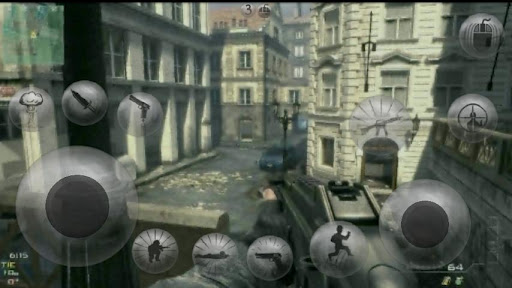
Kainy is a remote desktop oriented for Gaming and Performance.

Stream your games from your PC into your Phone/Tablet.

Play your PC Games Everywhere (Wifi/3G/4G).

- HD/native resolution (8 qualities).
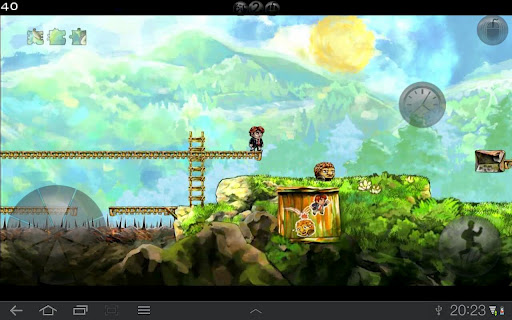
- About 100 Preset Templates for Controls and UI.
- Up to 60 fps.
- Customize your Interfaces (Buttons and Controls).
- Apply your Custom Pages (Interfaces) for each of your Games/Applications.
- Use Accelerometer to control your Games.
- Support Fullscreen, Sounds, Bluetooth Keyboard...
- Authentication/Data encryption in 128 bits.
- Use Kainy as Game Controller.
- Optimized for Neon, Tegra2 and Tegra3.


Download link
Kainy 

 For Free Download link comment below

Saturday, August 11, 2012

Enable NFC on your Samsung Galaxy S2


 Enable NFC on your Samsung galaxy s2 with this simple tutorial.

This is only for jelly bean Roms.


 OBVIOUSLY this mod is only for peoples devices who support NFC. If it doesn't support it normally, DO NOT EXPECT it to support it now.

*Thanks to CM10 team who made this possible


Devices Confirmed Working On:
-I777
-M250k/M250s
....IDK you tell me!


Devices this should work on:

i9100 = NO

i9100P = YES (it's an i9100 exactly, but with NFC. ROMs for i9100 will work, but need to be modified to show NFC settings, otherwise no NFC options will show)

i9100G = NO, it's completely different from the i9100 hardware (TI-OMAP instead of Exynos). ROMs from i9100/P don't work.

T989 (T-Mobile GS2) = YES, but it's completely different from the i9100 hardware (Snapdragon S3 instead of Exynos). ROMs from i9100/P don't work.

i777 (AT&T GS2) = YES* , stock ROMs disable it. ROMs from i9100 work because they're the same phone (it's really an i9100P because it has NFC) but you need to modify button layout or the buttons won't work in the ROM.

D710 (Sprint GS2) = NO


What to do ?

Just flash this file

Sunday, August 5, 2012

Hide Hard-Disk Drives Without 3rd Party Software on Windows


Here is a cool technique which hides entire hard disk drives by a simple procedure.
This is the best security tip to be employ against unauthorised users.

1) Go to Start > Run > type "diskpart".
A DOS window will appear with following description.
DISKPART>
2) Then type "list volume"
The result will look something like one as shown below-
3) Suppose you want to hide drive E then type "select volume 3"
Then a message will appear in same window { Volume 3 is the selected volume}
4) Now type "remove letter E"

Now a message will come { Diskpart Removed the Drive letter }
sometime it requires to reboot the computer.

Diskpart will remove the letter.

Windows XP is not having capabilty to identify the unknown volume.

Your Data is now safe from unauthorised users.

To access the content of hidden Drive repeat the process mentioned above. But in 4th step replace " remove" by "assign".

It means type "assign letter E".
if havent understand

Boost your Android Mobile Gaming Performance


Give a new life to your old phone with GameBooster now!

Are you bored because of new games lagging on your phone? You don't need a new phone for playing high-end games! Boost your games with Game Booster!

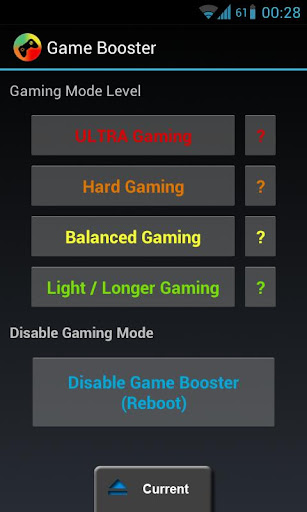
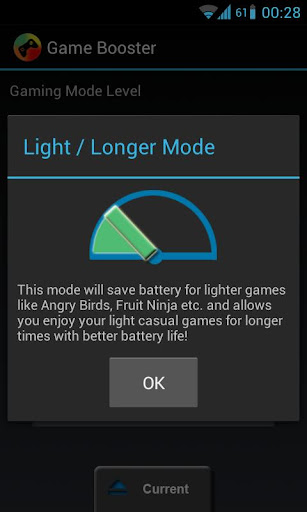
Choose from 4 different Gaming Mode Levels and give your old phone a new life.
Gaming Modes

-ULTRA Gaming Mode
-Hard Gaming Mode
-Balanced Gaming Mode
-Light / Longer Gaming Mode

How can GameBooster speed up my games?

Game booster tuning CPU, Memory settings, system and Android's linux part for gaming.
• Boost your games with GameBooster!
• Play High-End games on your old phone!
• Make your gaming time and battery life last longer!

This app will decrease background service priorities (lesser CPU overhead), Increase low memory killer values, Tuning CPU treshold, sampling rate, and maybe governor depending on selected gaming mode level. There are too much things that will really imporive gaming. It only needs Root. More features will be added next days.

New planned features ; Home screen replacement when gaming mode on, Disable known ram hungry apps while gaming, disable multitasking and focus game (Android 4.0+).

Works on every root phone.

If you can't difference on games this means you got low RAM.

This app can't add more RAM or cores to your device. Game Booster mostly fixes CPU lacks and disables known RAM hungry apps. It makes your phone a bit better on games with different methods.

NOTE: If you copy this apk and redeem the app, app won't work.

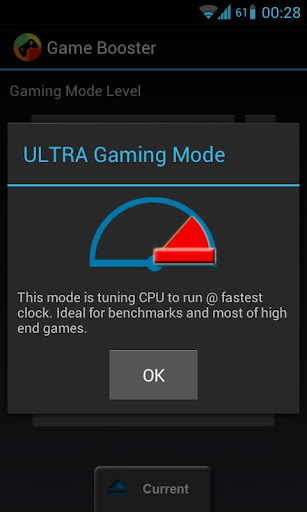
If you are crazy about overclock and benchmark, you can get most of your phone by applying Ultra Gaming Mode.


Download link
GameBooster

Comment below for free download link..

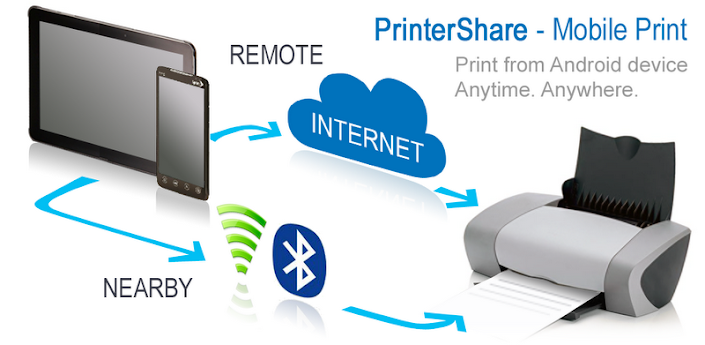
Print documents, gmail, photos, contacts, sms/mms and more directly from your Android devicedevice


Print documents, gmail, photos, contacts, sms/mms and more directly from device!
Wirelessly print documents (MS Office: Word, Excel, Powerpoint; PDF and text files) from device memory, SD card and even from Google Docs!

Instantly print emails from Gmail, photos, contacts, agenda, sms/mms, call log, web pages and other digital content directly from your device to a printer right next to you or anywhere in the world!

For unlimited printing you need to purchase PrinterShare Premium Key, which is a separate small application that simply needs to be on the device to unlock Premium Features. Prior to buying the key we highly recommend printing the test page to ensure compatibility with your printer.

Premium Features:
* Nearby direct printing via Wi-Fi, Bluetooth and USB without PC;
* Nearby printing to Windows shared (SMB/CIFS) or Mac shared printers;
* Unlimited Remote printing. The receiving end (Windows or Mac) would not have to buy pages or subscribe.

Please note:
1) PrinterShare supports Google Cloud Print at no extra-charge. Google Cloud Print requires latest version of Chrome browser on your computer. For more setup instructions please read http://www.google.com/support/cloudprint/
2) If something isn't working as expected, send us email to support@printershare.com. Posting comments about it does not help anyone, and we can't respond.

PrinterShare are supporting a wide variety of HP, Epson, Canon, Brother, Smasung
 and other printers including legacy networkable.

Have a good print!


Download link
 PrinterShare

Comment below for free download link

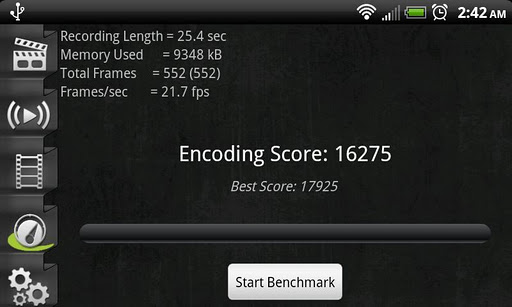
Capture your Android phone's screen at high frame rates into a high quality MPEG4 video with audio using Screencast Video Recorder - Free Download


                                 ** Root Needed **

** Does not work on Galaxy Nexus or Tegra 2/3 yet **

Screencast captures your phone screen at high frame rates into a high quality MPEG4 video with audio. It can also take snapshots of your screen by holding the search key on your phone.


Support forum:
http://goo.gl/YkqmM

This program includes a gallery to view, play, rename, delete and share your previously recorded videos or screen shots from within the same user interface.
Please contact the developer if you have question or issues, before rating the app low. The developer cannot help you if you only post a review and do not email for support.

You can also hit "Menu" and select "Report a problem" to get support.

**IMPORTANT: Media Solutions understands that the 15-min refund period is not long enough to test all the app's functionality. For this reason, we are extending the refund period to 24 hours. Please make sure you contact the developer if you encounter problems, and in case of needing a refund before the 24 hours grace period.

**This app complies with the LGPL as it uses libavcodec by FFMPEG for the encoding process. The sources used are from ffmpeg-0.8 release, and compiled without modification.

Download links
Screencast - Google Play
Screencast - Free Download

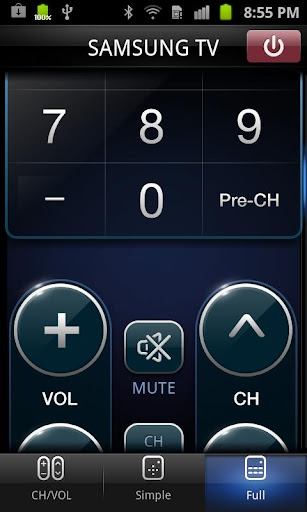
Use your Android Phone as a remote control for Samsung Smart TV


[Supported Models]
- Samsung Smart TV released in 2011:
Models greater or equal to LED 7000, PDP 8000
- Samsung Smart TV released in 2012:
Models greater or equal to LED ES7500,(Models greater or equal to LED ES7000 in Europe, Models greater or equal to PDP E8000 Models(E7000 Models in North America)
- Samsung Smart Phone:
Galaxy S2 (Dual View may not be available on devices with Ice Cream Sandwich OS in a few regions. Ice Cream Sandwich OS in these regions be supported in a short time.)
- Galaxy Player (YP-G70)


[About the Application]
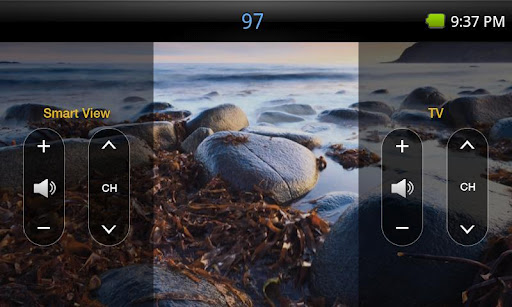
This application is Wi-Fi remote control for Samsung Smart TV. If both your phone and TV are connected to the same wireless Router, your phone will link to the TV automatically where you can use your phone like a remote control. The TV can also transfer live feeds to your phone.


[Main Features]
- Dual View
Enjoy TV and other multimedia right from your mobile device that’s connected to Samsung Smart TV. You can even send what you’re watching on your mobile device to TV and watch it from TV.
(Dual View may not be available on devices with Ice Cream Sandwich OS in a few regions. Ice Cream Sandwich OS in these regions be supported in a short time.)
- Bluetooth PowerOn
You can use your mobile device to turn on your TV using Bluetooth (available for certain TV and mobile devices only).
- Remote
Your mobile device can work as remote for your Samsung TV or BD products. Full remote screen is provided by default, and three tabs are provided at the bottom of the screen to help you control connected devices with ease. On screen keyboard shows up automatically when you need to enter text.
- Game Controller
With this feature, your mobile device can control games on TV. Full and Simple modes are available. Turn on Gyro function on your mobile device, and control games by tilting your mobile device.
- Movie Note (Models BD-E5900 or above, HTE4000or above (US only))
You can get information of DVD/BD title on your mobile, while you watching movies.
Ratings, synopsis, cast and director's information will be provided.
- Audio Settings (Models HT- E4000 or above)
You can control your speaker system by your phone.
Sound mode, distance of each speaker and sound level(dB) can be changed.
- Remote Scheduler (Models BD-E8000 series, STB-E7000 series EU/Australia/New Zealand Only)
Recording TV shows through your TV when you're outside.
- Settings
You can fine-tune control for TV and BD by adjusting gesture sensitivity in your mobile device.


[How to set up]
1.Check if Wireless Remote Control or Network Remote Control is enabled in your TV’s System or Setup menu. If you don’t see either of them in the menu, Samsung Smart View App can’t be used in your mobile device.
2.Connect wireless/wired router to TV LAN port, or connect Samsung Wireless LAN adapter to TV USB port.
3.Connect your phone to wireless/wired router.

Download link 
Samsung Smart View

Saturday, August 4, 2012

How to Make your Windows XP GENUINE


This will allow you to bypass the Microsoft Genuine Validation thingythis method works better than many others i've tried before.

forget the cracks and injectors etc... this is the BEST WAY:
1) start > run > "regedit" (without the quotes of course)
2) go to the key:HKEY_LOCAL_MACHINE\SOFTWARE\MICROSOFT\Windows NT\CurrentVersion\WPAEvents\OOBETimer...and doubleclick on it.
Then change some of the value data to ANYTHING ELSE...delete some, add some letters, I don't care...just change it!now close out regedit.
3) go to start > run > "%systemroot%\system32\oobe\msoobe.exe /a" (again, dont type the quotes)
4) the activation screen will come up, click on register over telephone, then click on CHANGE PRODUCT KEY, enter in this key: JG28K-H9Q7X-BH6W4-3PDCQ-6XBFJ.
Now you can dl all the updates without activating,
and the Genuine Microsoft Validation thingy won't bug you no more!!
Works with most WinXP versions though ther r some exceptions...


More Keys :

HFRJP-BVYWW-C8C63-F36MJ-GMDQD
KD2YT-4YT3T-4VQQX-43WBV-FDF3M
CX633-TT3DV-VQP3F-94DKT-3MRR3
W6GHC-TXPFC-V79P2-BCHDQ-DJV3W
J3TGH-CPY32-CCXCW-C6FQF-DFBHB
F2GW6-TMPJT-VH2GF-9G3XM-G9GYD
J9QWM-JP8BX-M9C2F-JJXYH-WTD7B
K4YHK-GQRXD-7T773-YGYYJ-68JBJ
G96J2-2WYMR-9BFMP-MQRJT-XCXV6
CT7TY-2VTY4-PMPGF-2PQFH-Q8HPT
QX2V4-2V76D-XH8PV-RQQT9-QJMBT
PX83Q-RXY8T-TRXQM-CDHFB-78BGG
PDCV3-3V282-DXMVJ-V6HGJ-P9JHQ
JMRCY-4QMYM-J3BVJ-BQJWF-2HTKJ
BRYJV-CFWKX-JYDM9-RDW34-PRV46
KKH9W-PR2XY-XFYXW-R4C2R-XFXJ3
W4DTB-P33VR-G26PF-4BW39-WP2Q3
KMT4R-W6RPC-CQJX3-YDM9C-BV24Y
PCM2H-JPK8V-TCTBM-3KFB2-33488
CXRYY-TM77D-92JJX-44DX8-8RW9M
D62H3-XTG8F-2RMTX-KG938-9RYCJ
R2TJC-YTHTC-B7GVQ-RJ6W8-GT9KW
HJHYP-P7Q6B-D6HP9-2WPT2-3BFPQ
FKK2C-6R3DR-M6PFW-4KYTT-PDWFT
TRYD9-P4CQB-6M3D6-V38JW-VX6RQ

Thursday, August 2, 2012

Unistall all Crap Applications in an easy and faster way on your Android mobile


Simplist & fastest uninstall tool for android.
Easy & fastest uninstall tool for android.

#Feature
*Batch uninstall
*Fast uninstall by one click
*Show app name,version,update time,size
*Search app by name
*Various sort mode
*App share
*Launch app
*Cached app list
*Search in Google Market
*Support Android 2.3
*Support App2SD
***************************
INFOLIFE, Make Life Easier!
***************************
#Description
Easy Uninstaller is a tool to uninstall apps for android phones. It is quit easy to use, you can select multiple apps that you want to uninstall, and click "Uninstall Selected Apps" button to uninstall them. Easy Uninstaller also support app search & sort. Type the keyword in the textbox in the top to search the app that you want to uninstall. Click "Menu"->"Sort" to sort the apps in many sort types. Long click on specified app, you will get a poped up context menu to provide more options. You can view app details by click "Application Details", you can share app by click "Share", and you can search the app in the google market by click "Search in Google Market".
Easy Uninstaller cannot uninstall pre-installed apps in the system because it is limited by the system mechanism.

 Download link
Easy Uninstaller

Comment below if you need free download link for pro version.

Mikogo Desktop Sharing - The Best Application for Online Meetings and Remote Support


Have you ever found yourself needing to conduct an online meeting but didn’t know what your best option was? Do you often times find yourself doing IT support for your parents from miles and miles away, only to get frustrated with their ineptitude? Mikogo is a desktop sharing and online presentation tool that is helping to facilitate the everyday business and technology needs of companies and individuals worldwide.

Conferencing

               Mikogo has a convenient and user friendly approach to desktop sharing. For starters, users can sign up for a free account that will allow them to use all of the pro features. Within that, users can edit their profile settings, schedule sessions and use advanced tools (whiteboard, record, etc.). And on the other hand, if you don’t need the advanced features you can just download the software for free to start and join desktop sharing sessions – no registrations required for that.

Desktop Sharing
               Users can share their desktops with up to 15 people (25 on a pro+ account). This can come in handy for online webinars, tutorial sessions, online teaching, IT tech support, and more. Desktop sharing features can be edited at will and include options to view, show, and view & control the desktop’s of you and your participants.
               Remote control features will also allow users to control the screen of the participants for IT or assistance purposes.

               From there you can use presentation tools like the participant pointer and pen to highlight your content and material. You can transfer files, record your desktop sharing sessions for future playback, and switch presenter and viewer modes between participants.

Mikogo Apps: iOS and Android
               Mikogo works on all 3 platforms (Windows, Mac & Linux) but what’s really nice to see is they have mobile apps:iOS and Android. Here is a statement from Mikogo released shortly after: “The core benefit of online meetings is that they allow people to participate in business meetings when unable to attend in person. In recent years there has beena growing and strong tendency towards technology ‘going mobile’ hence people want to be able to attendtheir online meetings while on the go.” (Mark Zondler, Mikogo). The app is free and can be accessed from your iphone, ipad, or Android phone/tablet.


For more information about Mikogo please visit www.mikogo.com and to download, go straight to www.mikogo.com/download.

Wednesday, August 1, 2012

Windows tips - Useful Run commands


Type the following commands in your Run Box (Windows Key + R) or Start Run

devmgmt.msc = Device Manager
msinfo32 = System Information
cleanmgr = Disk Cleanup
ntbackup = Backup or Restore Wizard (Windows Backup Utility)
mmc = Microsoft Management Console
excel = Microsoft Excel (If Installed)
msaccess = Microsoft Access (If Installed)
powerpnt = Microsoft PowerPoint (If Installed)
winword = Microsoft Word (If Installed)
frontpg = Microsoft FrontPage (If Installed)
notepad = Notepad
wordpad = WordPad
calc = Calculator
msmsgs = Windows Messenger
mspaint = Microsoft Paint
wmplayer = Windows Media Player
rstrui = System Restore
netscp6 = Netscape 6.x
netscp = Netscape 7.x
netscape = Netscape 4.x
waol = America Online
control = Opens the Control Panel
control printers = Opens the Printers Dialog

How to turn XP SP2 into SP3 or even more


Start> Run> type in 'regedit'
Go to HKEY_LOCAL_MACHINE, then SYSTEM, then CurrentControlSet, then windows
From here on in click "CSDVersion" and click modify, change "0x00000200" (SP2) to "0x00000300" by typing 300 in the field where 200 once was.
Close it down,
Restart (MAKE SURE YOU RESTART)

Introduction To Hacking (Tutorial 1)


Introduction:

 Hey guys am here again with my other post which gives you the brief Introduction To Hacking.So Are you eager..? So lets know about all about hacking today. I will be posting some tutorials about the hacking. So Folks keep visiting the BLOG.

Lets move to the topics now.........
So guys for today let us know about on below topics

1)What is Hacking.?
2) Who is Hacker.?
a) Types of Hackers.
b) Hacker's Hierarchy.

What is Hacking and Who is Hacker? 

Hacking is nothing but tinkering with electronic or computer systems. The person who does these is known as Hacker. 

So guys all of us think that Hacker's are cool,bad-boy's and selfish in nature but actually that's not the real thing. I do agree they are cool,passionate etc but all Hackers are not Bad-Boys,Selfish. There are many Hacker's who work(Hack) for welfare of people and are against the Bad-Boys. So thinking that all Hackers are bad,selfish in nature is not a good thing according to my point of view.

Types of Hackers

There are two main types of Hacker's in the world they are :
1) White Hat Hackers
2) Black Hat Hackers

So guys let us know about them individually,

1) White Hat Hackers

These are considered the good guys. White hat hackers don’t use their skills for illegal purposes. They usually become Computer Security experts and help protect people from the Black Hats.
Example:  Ethical Hackers

2) Black Hat Hackers

These guys are considered as the bad guys. Black hat hackers use their skills for illegal purpose.
They usually break into system's security steal all the confidential data from the people for their personal use.
Example : Malicious Hackers

Hacker's Hierarchy

Script Kiddie's:

These guys are just noobs in world of computers. They do-not have any idea of "HOW TO HACK" but pretend to be a Hacker. These guys are actually not a hackers but misunderstanding of people had made them to pretend to be a hackers.They just Copy-Paste the things from the Pre-Coded codes of hackers and implement them where they are not supposed to and become bugged-up having no idea what the code does.

Intermediate/Middle Level Hacker's:

These people usually know about computers, networks, and have enough programming knowledge to understand relatively what a script might do, but like the script kiddies they use Discovered well-known exploits (- a piece of code that takes advantage of a bug or vulnerability in a piece of software that allows you to take control of a computer system) to carry out attacks.These are just considered as the one step forward people from the Script Kiddie's.They just make some changes in the main Discovered well-known exploits and discover the other things from them. These people re just the user's but not the one who discover something on stand-alone.

Elite Hackers :

Here are the real guys who have most of the knowledge of computers,networking,security systems etc. and more than that they are well experienced guys. These Pro guys are actually known as a real hackers who can just do anything with their knowledge. They are nor dependent and do discover the things own.

Guys Stay Tuned for my next Tutorial :

☻S☺I☻G☺N☻E☺D☻☻B☺Y☻ - RK WORLD

 VISIT HERE FOR MORE : Geek's Area